
文章探讨了Active Directory Certificate Services (AD CS)在混合云环境中的攻击面,重点分析了通过Intune和证书连接器分发证书可能导致的安全风险。指出Intune管理员可请求任意主题证书,甚至普通用户可能利用配置错误的设置提升权限至域管理员。 2025-7-30 14:0:57 Author: dirkjanm.io(查看原文) 阅读量:31 收藏
18 minute read
Active Directory Certificate Services (AD CS) attack surface is pretty well explored in Active Directory itself, with checks notes already 16 “ESC” attacks being publicly described. Hybrid attack paths have not gained that much attention yet, though I have come across several hybrid integrations while reviewing cloud configurations. In these setups, certificates are rolled out to cloud-managed endpoints via Microsoft Intune and the Intune certificate connector. The certificate connector runs in on-premises AD and requests the certificates on AD CS via the SCEP or PKCS integrations. In such environments, it would be possible to request certificates with arbitrary subjects as an Intune administrator. What I have also observed in some cases are certificate configurations in Intune being misconfigured in a way that would allow regular users to perform the same attack and effectively perform ESC1 over Intune certificates. That means going from regular user and their endpoint to Domain Admin in AD, all from the cloud. This blog explores the scenarios where this is possible and provides exploitation and remediation guidance.
The setup
Intune supports a “Certificate Connector” that can be installed on-prem, to allow Intune to request certificates in AD CS. The certificate connector is documented here and provides 3 options for distributing certificates:
- PKCS, which requests the certificates in AD CS using an Intune generated private key, and pushes the certificate plus the key to the device.
- SCEP, in which case the device requests the certificate over the Simple Certificate Enrollment Protocol using an Intune provided “challenge”. The SCEP endpoint is usually internet exposed through a proxy.
- PFX import, which distributes administrator uploaded PFX certificates to devices (not covered in this blog).
The certificate connector is usually installed on a standalone server in AD, and in case of the SCEP protocol will also need the Network Device Enrollment Service (NDES) server role (part of AD CS). In addition, both of these configuration options require an AD CS certificate template that allows user supplied SANs. On the AD side, such a template would look as follows (output from Certipy):
  1
    Template Name                       : NDES-Computer
    Display Name                        : NDES-Computer
    Certificate Authorities             : hybrid-HYBRID-DC-CA
    Enabled                             : True
    Client Authentication               : True
    Enrollment Agent                    : False
    Any Purpose                         : False
    Enrollee Supplies Subject           : True
    Certificate Name Flag               : EnrolleeSuppliesSubject
    Extended Key Usage                  : Server Authentication
                                          Client Authentication
    Requires Manager Approval           : False
    Requires Key Archival               : False
    Authorized Signatures Required      : 0
    Schema Version                      : 4
    Validity Period                     : 1 year
    Renewal Period                      : 6 weeks
    Minimum RSA Key Length              : 2048
    Template Created                    : 2025-05-22T14:09:06+00:00
    Template Last Modified              : 2025-05-22T14:10:00+00:00
    Permissions
      Enrollment Permissions
        Enrollment Rights               : HYBRID.IMINYOUR.CLOUD\svc_ndes
                                          HYBRID.IMINYOUR.CLOUD\Domain Admins
                                          HYBRID.IMINYOUR.CLOUD\Enterprise Admins
The following details are important for this attack:
- The template is from a CA that is in the
NTAuthCertificatesobject in AD. - The
EnrolleeSuppliesSubjectflag is set, this is a requirement for Intune to be able to issue certificates for other users/devices, meaning that this flag should always be set for Intune templates. - The certificate allows for client authentication. As client authentication is one of the major use cases for these certs I can’t imagine many cases in which this will not be configured.
- A service account hosting the NDES server role or the host on which the certificate connector is running is authorized to enroll in the cert template. For SCEP it is common to use a separate service account, for PKCS I think it defaults to the computer account of the server. If “Domain Users” can enroll then you already have ESC1 and there isn’t much need for the rest of this blog as long as you have network connectivity to the CA.
SCEP vs PKCS
While the Intune Certificate connector supports both protocols, companies are likely to use either one or the other. Architecture wise they are quite different, so let’s take a high-level look at how both operate:
PKCS
PKCS performs most of the operations between Intune and the device. The flow is as follows:
- Intune will generate a Certificate Sign Request (CSR) and private key within the Intune service.
- When the Certificate Connector checks in it will download the CSR and try to request the certificate with AD CS.
- It then uploads the issued certificate to Intune.
- The issued certificate with the Intune generated private key is pushed to the device.
In a diagram, that looks as follows:
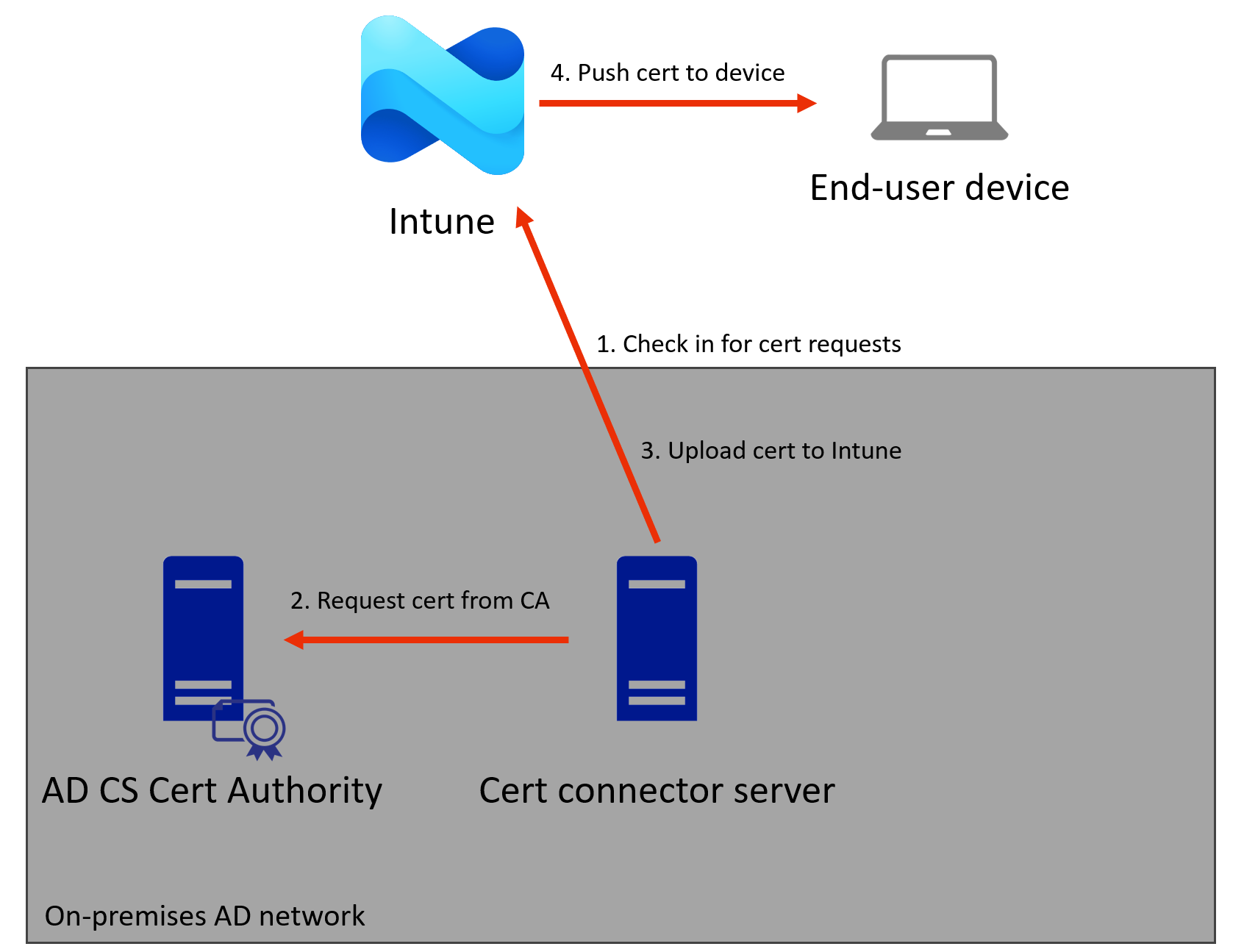
The important details here are:
- The private key is generated by Intune, not by the device. Theoretically Intune also possesses the private key while it hasn’t yet been provisioned to the end-user device.
- The device only communicates with Intune, not with any AD asset directly.
- It can be used to enroll in any template that the connector service has access to, since this is supplied in the certificate configuration.
SCEP
With SCEP, the flow is different:
- Intune generates an encrypted and signed “challenge blob” and send this with the certificate details to the device.
- The device generates a private key locally and uses SCEP to talk to the NDES server, requesting a certificate based on a CSR and the challenge.
- The certificate connector validates the challenge and CSR by sending them to Intune. Intune performs various checks to confirm that the subject, SANs, EKUs etc matches with the certificate profile, and that the challenge isn’t expired.
- If the validation succeeds, the certificate connector sends the CSR to the CA and it will issue the certificate.
- The signed certificate is returned in the SCEP response to the device.
Again a diagram of this flow:
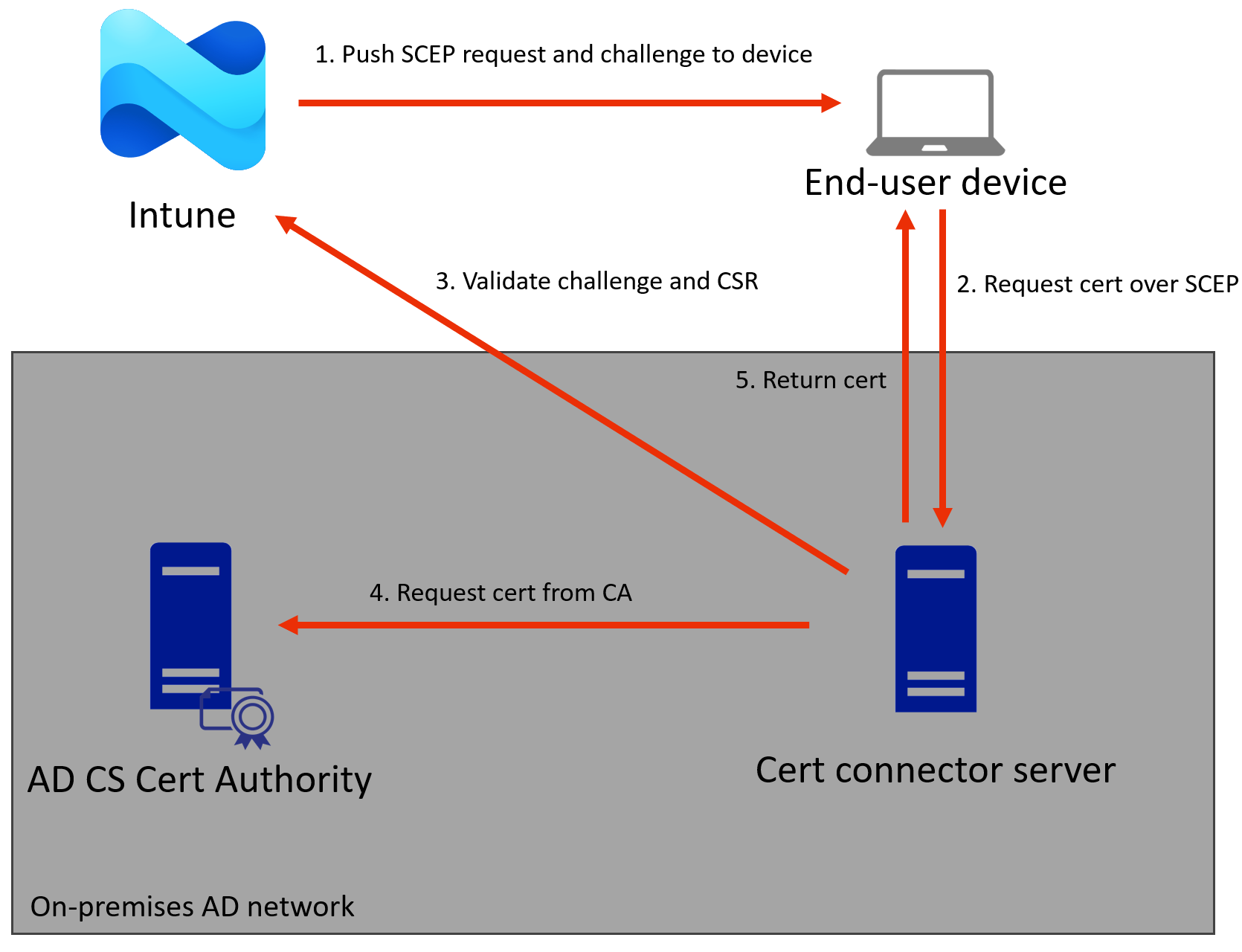
A few notable points:
- In this case the private key never leaves the end device.
- The device does communicate with AD, usually over something like an application proxy.
- The device generates the CSR so it could request a completely different cert, however the NDES server validates the request by sending the CSR to Intune.
- The enrollment template is fixed because it is configured in the registry on the NDES server.
It should be no surprise that if such a setup is present, it can be abused by attackers if they have a privileged role in the tenant. After all, the AD CS template allows any subject, the Certificate Connector or NDES server can enroll these templates, so with the correct configuration we can impersonate a Domain Admin or a domain controller. There are three main challenges with this:
- Configuring the template so that strong mapping requirements are met and AD will accept the certificate for our user.
- Getting the certificate delivered to an endpoint under the attackers control and using it to request a TGT for further exploitation.
- Having network access to talk to on-prem Domain Controllers. This is out of scope for the blog post, I’m assuming you already have at least network access in AD. While somewhat uncommon, it could be the case that companies also roll out their VPN configurations via Intune which usually use the same or a similar device certificate for authentication. As an Intune admin you could also roll out your favorite C2 implant binary to any Intune managed endpoint and get access to the on-prem network that way.
Let’s look at the Intune part first. Consider an example certificate profile here:
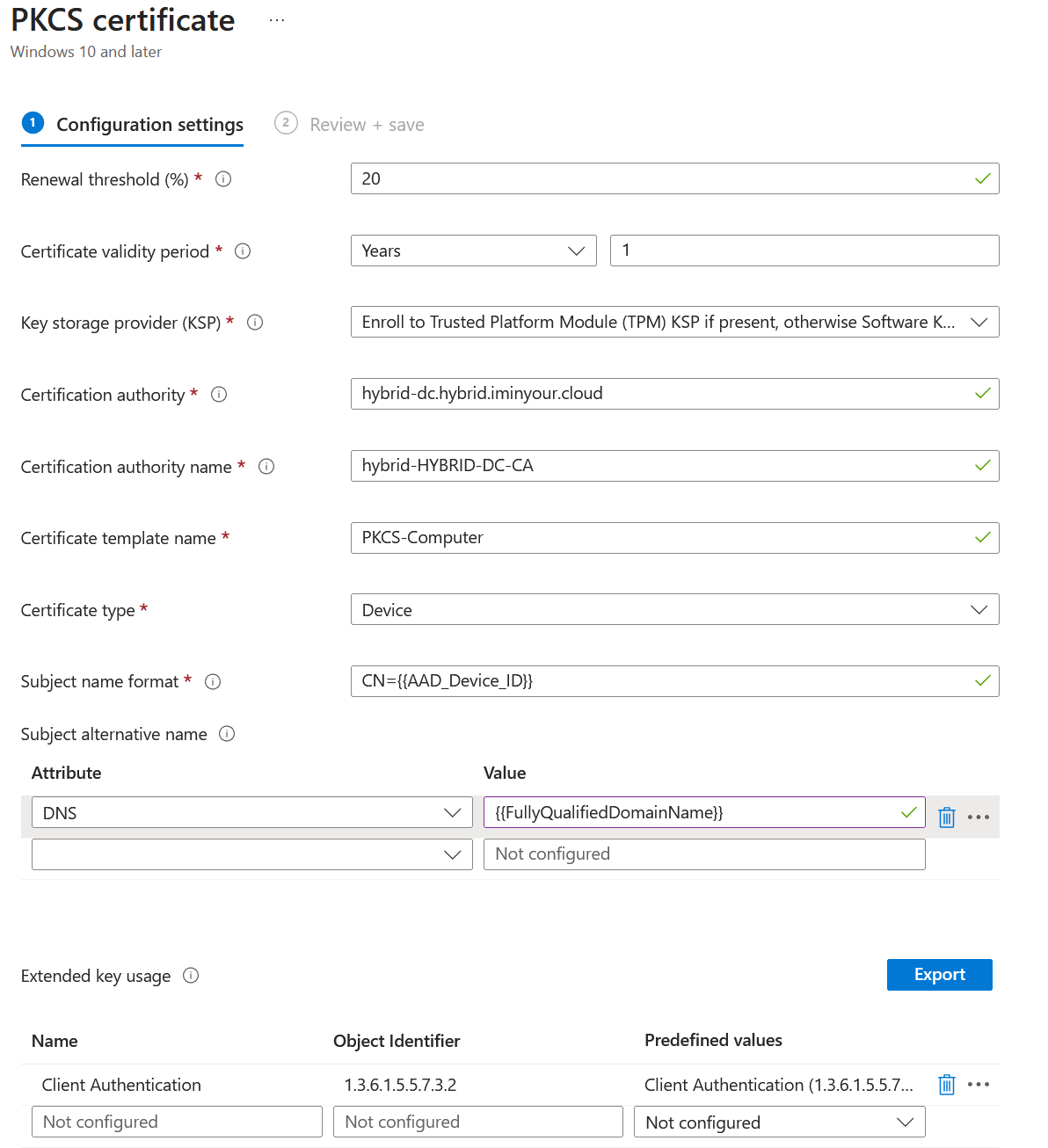
This is a device certificate, which is why it uses the DNS Subject Alternative Name (SAN) for mapping it to a specific device. User certificates would usually use the UPN instead of the DNS name. The Intune “Certificate type” is a device certificate in this case, which means it will be saved as a computer certificate on the endpoint if the Entra ID device object is in scope of the configuration profile. For user certificates, they are stored as a user certificate on the endpoint, and will be issued to users in scope of the configuration profile.
Both user or device certificate can be used to impersonate user or computer accounts in AD, since the mapping is done based on the SAN and the AD CS template will allow both objects. Whether to target a user or device in AD is up to you, in this example the goal will be to impersonate a Domain Controller, so I will pick a computer as a target and use a DNS SAN.
We will create a new configuration profile rather than modifying an existing one, to prevent the change from being rolled out to actual endpoints. This also makes sure the certificate will be provisioned immediately, since I don’t know how fast Intune picks up on “changed” certificate configurations, if at all, once a certificate is already issued.
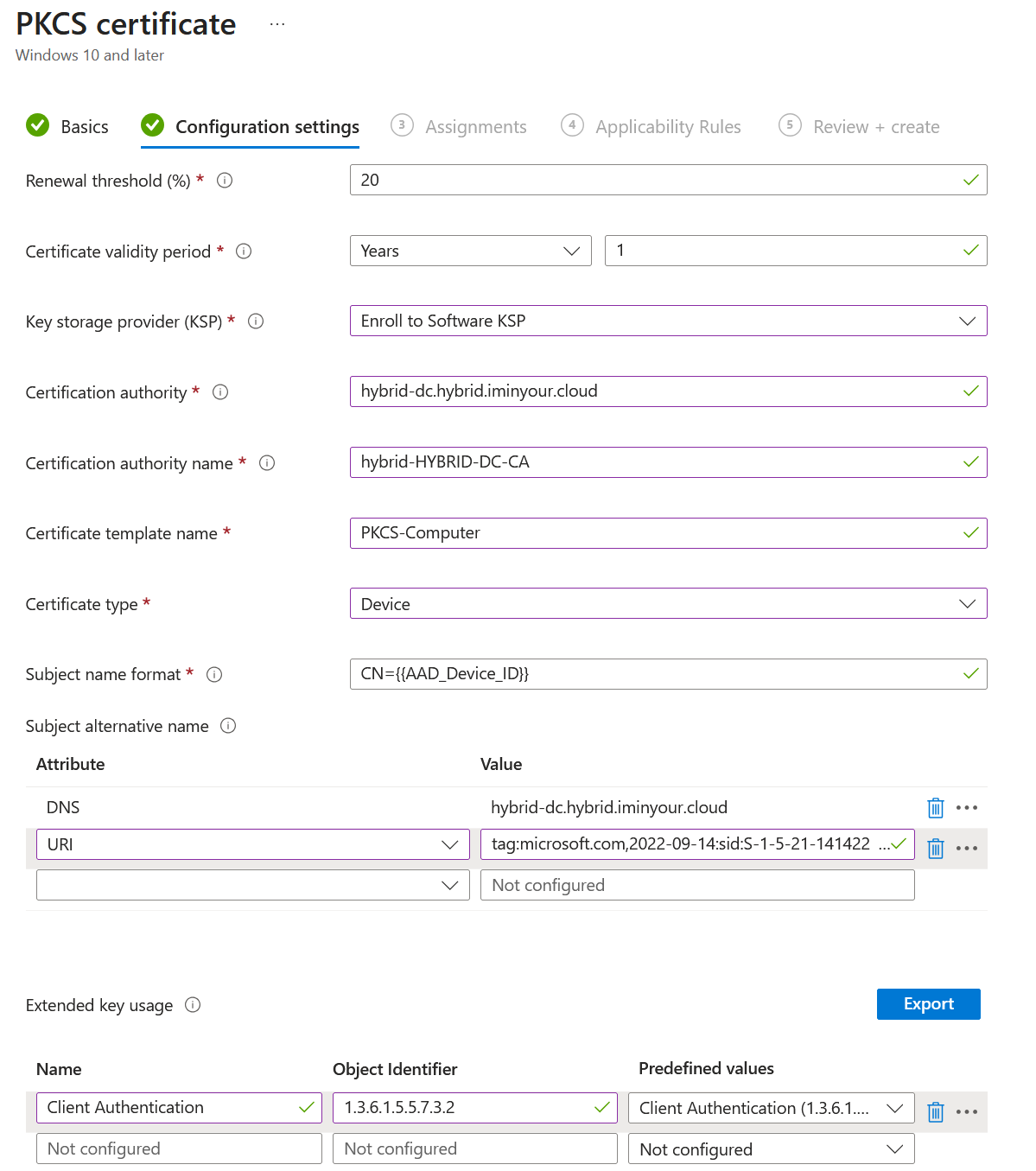
Based on MS-PKCA section 3.1, during PKINIT the certificate will need to be strongly mapped. Luckily for us there is a SAN URL tag specifically for Intune that we can use to ensure this: URL=tag:microsoft.com,2022-09-14:sid:<value>. In normal configurations this would be dynamically filled in for hybrid joined devices based on the SID that they have in AD, but we can also hard code it in the template. So in our new template, make sure to configure:
- The subject (doesn’t really matter in this case).
- The DNS SAN mapping to the hostname of a Domain Controller.
- The URL SAN that includes the SID of the Domain Controller (can be queried with BloodHound, ldapdomaindump or any other LDAP tool).
- Make sure the EKUs include client authentication.
In my case the final config looks like this:
Now we need to scope this to a device to actually issue the certificate. There are multiple approaches to this:
- Scope it to a legitimate device that is in the same tenant.
- Enroll a Windows based virtual machine in Intune.
- Enroll a fake device with tools such as AADInternals or pytune (I have not tested how easy it is to extract the certs from their output).
- Use roadtune with a fake Intune device which supports both PKCS and SCEP certificates.
While roadtune has (or will have actually from the next release) the most seamless support for this attack, it is currently not available as an open source tool but is part of the Outflank Security Tooling framework. If you have that, great, you can read more about the roadtune specific implementation in the roadtune documentation. But since I don’t want to promote commercial tooling in this blog I will stick with explaining the other flows here, with the primary focus on real Windows devices or VMs.
In this case I have an already enrolled VM that is in a group that I scope this configuration profile to:
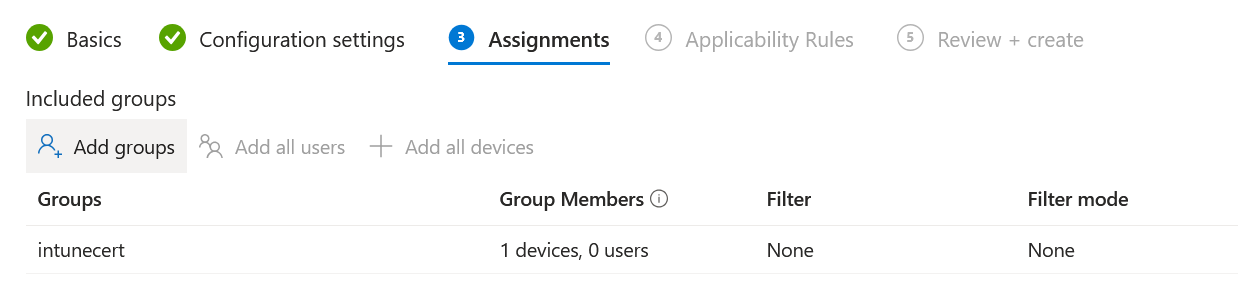
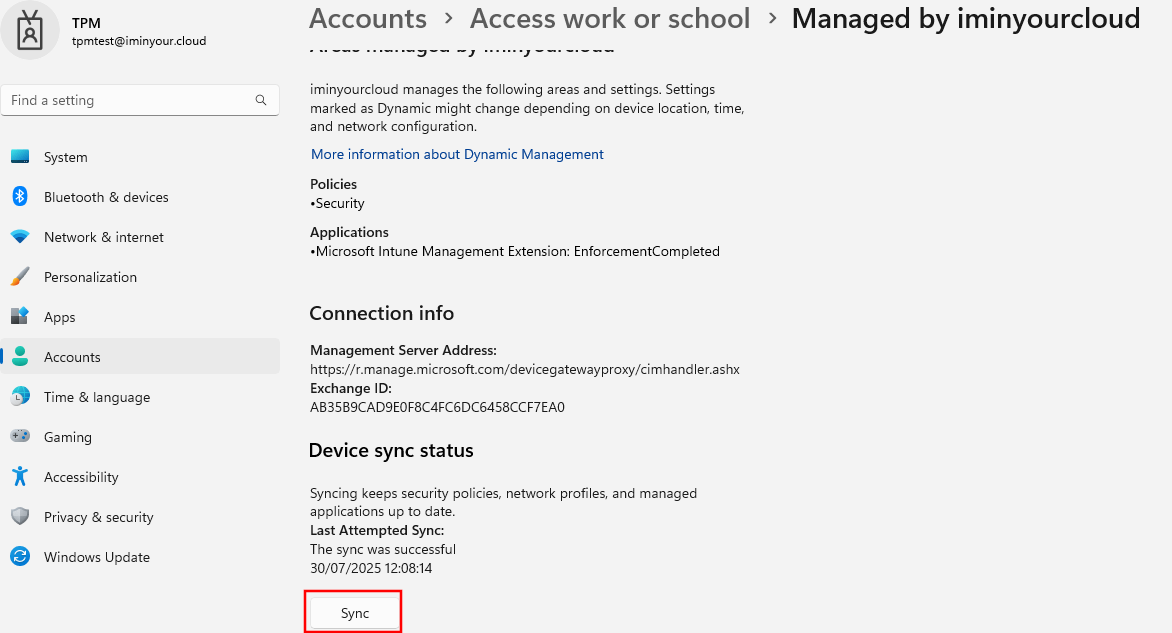
It can take a while for the device to pick up the new policy or for Intune to actually start pushing it. Assume a delay of around 5-10 minutes (that is what I had in my test). The telemetry in Intune is quite slow so don’t rely on that. Since it may take a long time for the device to sync, it is better to trigger a manual sync until we see the certificate in the store:
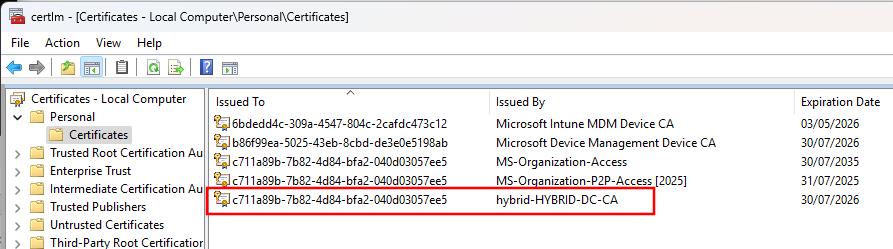
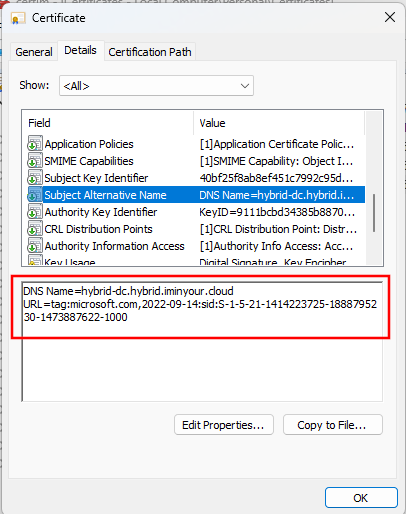
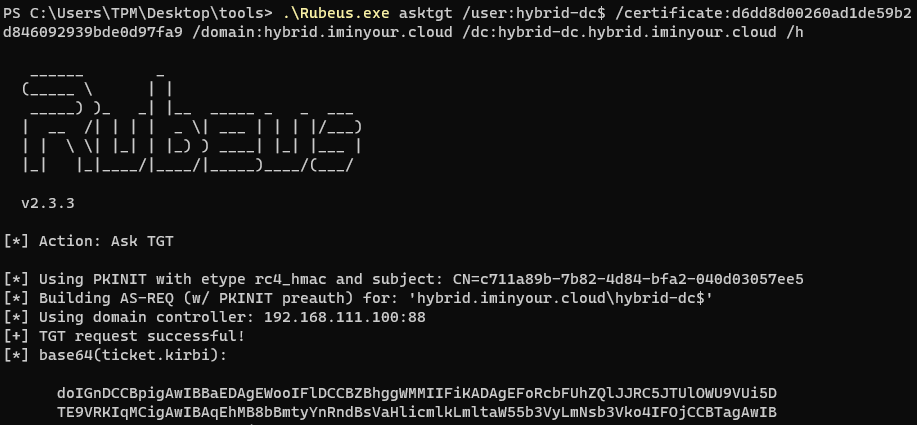
Once the certificate is in the store, we can either export it out (and bypass the key export restrictions) using mimikatz, or we can use it directly with Rubeus by specifying the thumbprint. Note that Rubeus only searches in the user store, so if the certificate type was “device” you need to patch out the store lookup to target the system cert store instead. We specify the certificate by its thumbprint.
If we want to capture the certificate before it is stored in the store, we can actually see the PFX cert in the SyncML data as well. There is a super awesome tool to debug this called SyncMLViewer by Oliver Kieselbach that allows us to capture the SyncML messages via ETW. If we search for the PFX install message, which will contain the “PFXCertInstall” command, we find the PFX itself and it’s encrypted password:
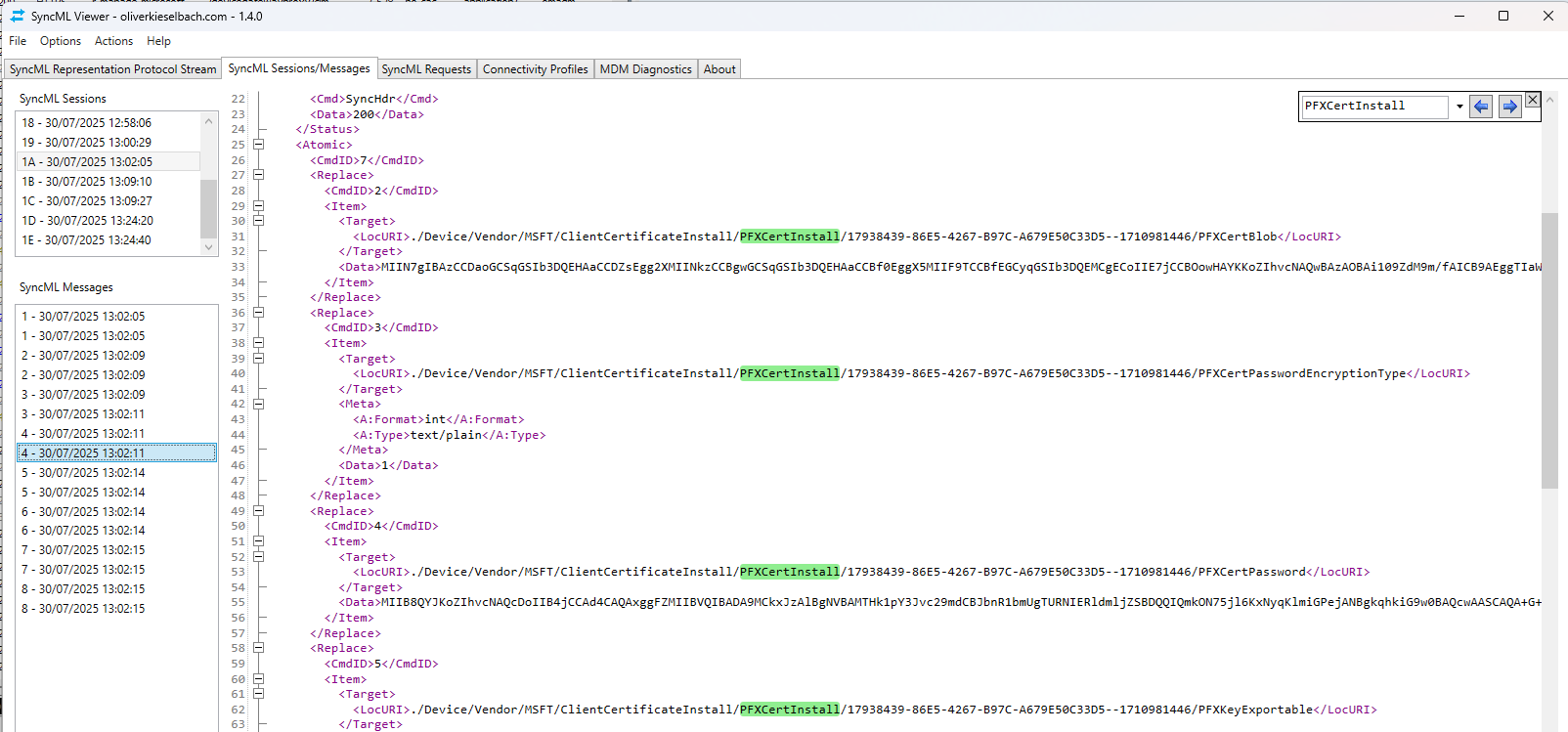
Decrypting the PFX password requires using the Intune MDM cert and private key, and using that to decrypt the PKCS7/CMS encoded data blob, which gives the PFX password. Performing this is out of the scope of this blog but that would be an alternative to exporting the key out of the Windows certificate store.
Now that we have a TGT for a Domain Controller we have essentially compromised the on-prem domain.
If you have a SCEP configuration profile instead of a PKCS profile, we can use the same technique to issue the cert to a real device, alternatively we can also pick the required details out of the SyncML stream and use that with scepreq as explained further down in the blog.
ESC1 over Intune
Now that we understand the general setup, let’s look at how we can achieve this without the modification of configuration profiles, for example from the point of a low-privileged user with an Intune license. Consider for example the following template:
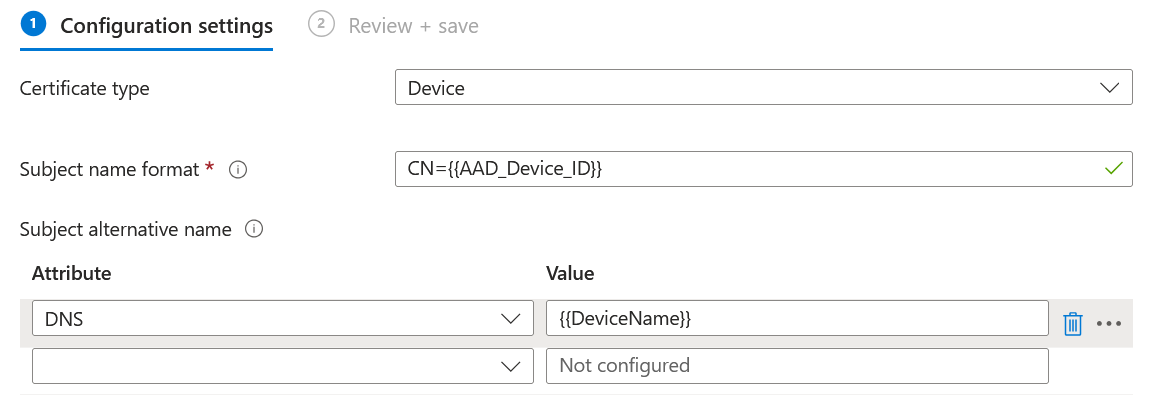
This template puts the FQDN of our device as a SAN in the template. There are many variables that could be used here, as is reflected in the Microsoft documentation. What is important here is that some of these come from essentially untrusted / user controlled data. This will mostly be the case for “device” type certificates, since “user” certificates are usually based on Entra data such as a UPN, which can’t be modified by the user themselves.
There could be a corner case if the company is syncing Tier 0 AD users to Entra ID, which is against best practices. If you could compromise such an account it could also be used to request certificates. But that would be a corner case that likely requires similar privileges in the tenant as the scenario above.
Back to the device cert based scenario. Microsoft does call it out in the documentation that these parameters could be spoofed.
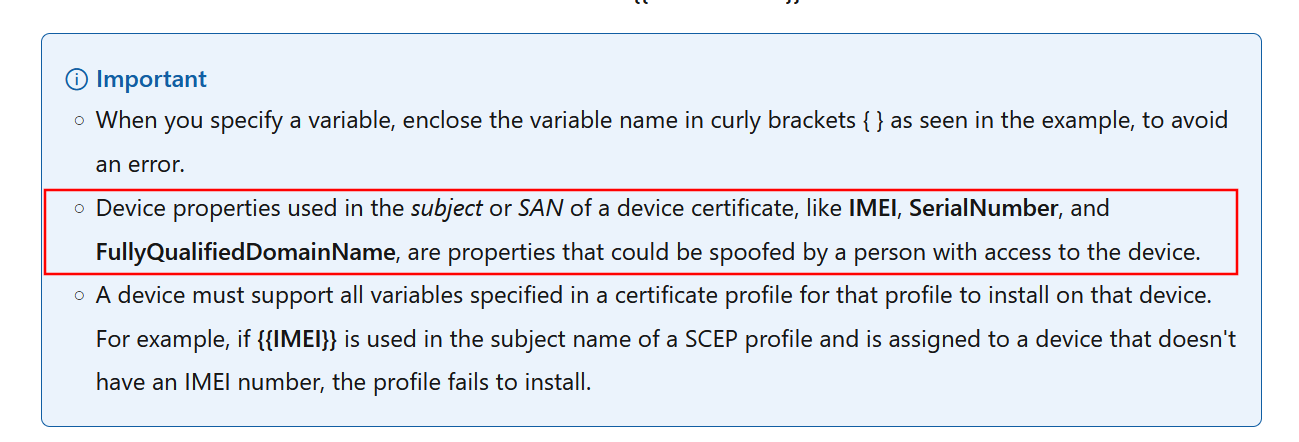
So this is exactly what we will be doing in this case. Before strong mapping was required, this would have been quite easy since we only need to include the correct DNS or UPN SAN in our request. Now that strong mapping is the default, that leaves us with two options:
- If strong mapping is not enforced, aka the registry setting
StrongCertificateBindingEnforcementis set to 1, then we can use both PKCS and SCEP templates to request a certificate with a UPN or DNS name SAN that is attacker controlled. - If strong mapping is enforced, which is the default currently and will be the only supported mode from September 2025, then we can only use SCEP templates to perform this elevation of privileges.
Why SCEP? Because with PKCS, the entire flow is between Intune and the Certificate Connector, which means we cannot add the strong mapping. The KDC will not accept our certificate and throw an error if no strong mapping is present. With SCEP we can create our own CSR, and as long as the subject and SANs match with the values in the Intune configuration profile it turns out we can add the SID security extension to the certificate with an arbitrary SID, this will pass the validation.
To sum up the requirements:
- We need to have a SCEP certificate that is configured for client auth and allows the Digital Signature key usage (this will be the case in most deployments).
- The certificate should have a SAN mapping that uses user-controlled or modifiable data. Examples are given below. This is what makes the configuration actually vulnerable and what should be mitigated if you are using such a configuration in production.
- We need to have a device that is in scope of this configuration profile.
There are a few challenges here:
- Intune does not by default allow regular users to view the configuration profiles. If we want to determine the actual configuration we would need to have a role assigned like Global Reader. An alternative, if one has access to a legitimate device, is to look at the certificates installed on the device. If the SAN is constructed from something that is user controllable, such as the device name or serial number, it can be abused.
- If we do this with a device that is in scope of the real policy, we can modify the configuration on-device. Doing that however will require figuring out where the device is getting these values from and then replace them either on disk, in memory or in the registry. For a fake device this is easier since we can just change the device parameters in the enrollment profile data.
Some abusable configurations in SANs are:
- Having a DNS SAN with
{{DeviceName}}. The device name can be configured as an FQDN, though Windows will not allow you to do so in the UI. Intune accepts these names without issue. - Having a DNS SAN with
{{DeviceName}}.companydomain.com. In this case we only need to spoof the first part, which we can do by renaming the real device. - Having a configuration as above, but then with
{{IMEI}}or{{SerialNumber}}. I don’t know where real Windows devices source this information from, so you’d have to figure that out yourself, or enroll a fake device.
Examples of configurations that are not vulnerable:
- Having a DNS SAN with
{{DeviceName}}.companydomain.com, if the domain does not match the on-premises domain name. - Using a SAN with data source from Entra / Intune that is automatically generated, such as
AAD_Device_IDorDeviceId
I have not figured out yet where {{FullyQualifiedDomainName}} is sourced from, it may be that this only exists on hybrid joined devices.
In this walkthrough we will explore the simplest configuration, where there is a SCEP cert that has a SAN based on the device name and a domain suffix that matches with on-prem AD.
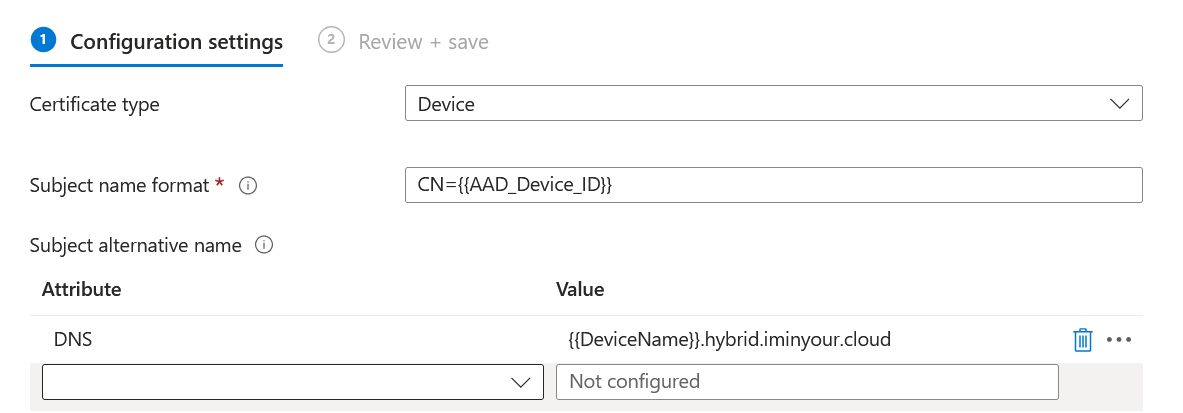
Let’s rename our device to match a Domain Controller name:
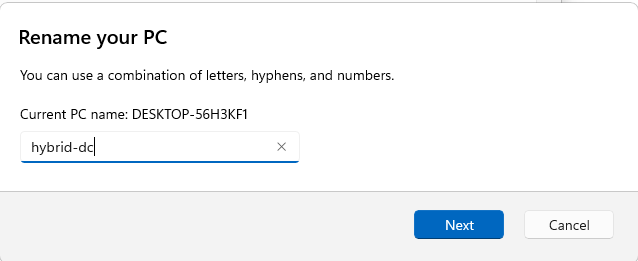
We also run the SyncMLViewer tool to watch the SyncML traffic, since we will use this to capture the traffic. What we are looking for are SyncML nodes with the ClientCertificateInstall/SCEP URI. These will contain the data for our SCEP enrollment. Once we trigger the sync with the new name we should see the data.
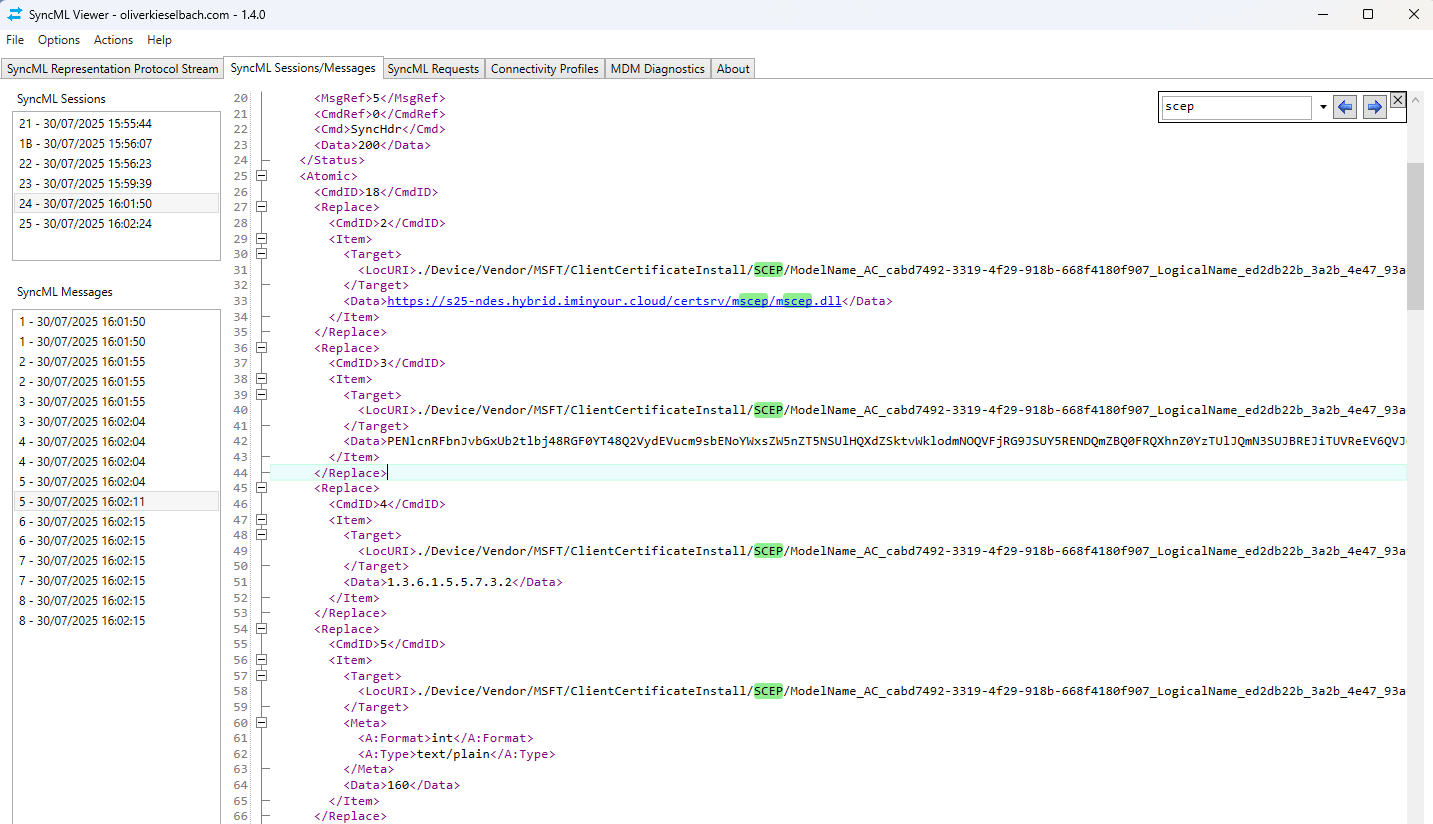
This contains everything we need to use scepreq to talk to the NDES service. Scepreq is a new tool that I’m releasing with this blog. It is essentially a modified fork of PyScep with a command line wrapper and extensions for AD CS and Intune specific certificate requests. The structures for custom SANs and security extensions are borrowed from Certipy.
We will need:
- The
ServerURL, which contains the SCEP endpoint. - The
Challenge, which is used in SCEP as a password. The challenge is valid for an hour after it is issued. - The
EKUMapping, which should at least contain client authentication (1.3.6.1.5.5.7.3.2), or the “any purpose” EKU. - The key usage. I’m not sure what the bit fields map to, I guess that is on MSDN somewhere, but most of the time it will be 160 in decimal which means both “digital signature” and “key encipherment”.
- The
SubjectNamefor the cert. - The
SubjectAlternativeNamesto use. These have a bit of a weird format with the comment in the documentation “Refer name type definition in MSDN”. If someone knows which specification they are taken from let me know. But the format is as follows:[nameformat1]+[actual name1];[name format 2]+[actual name2], where the nameformat is a number. Number 3 stands for DNS name, number 11 for UPN, the rest I don’t know but should be deductible from the format. - The SID from our victim, the Domain Controller, queried as in the first scenario in this blog.
If we take all that we can pass it to scepreq. Note that most of these values are actually case sensitive!
scepreq -u https://s25-ndes.hybrid.iminyour.cloud/certsrv/mscep/mscep.dll -p <challenge> --dns HYBRID-DC.hybrid.iminyour.cloud -s 'CN=c711a89b-7b82-4d84-bfa2-040d03057ee5' --sid S-1-5-21-1414223725-1888795230-1473887622-1000
If all succeeds we get a certificate. If not, there is unfortunately zero error information that NDES will give to use as of why this failed. It will be in the Event logs on the NDES server, but that is not a source of information that we can see in this scenario. Anyway, if all goes well it should look like this:

Once we have the certificate we can request a TGT with PKINITtools, Certipy or Rubeus:

And once again we have a TGT for a Domain Controller, elevating our privileges to Domain Admin.
Challenges and mitigations
In this case the starting point was a Windows device on which we had Administrator access so that we could spoof the correct variables and abuse the template. If it is not such an easy example as above, it would be more complex to spoof the correct identifier (such as a serial number) on a real device. Getting a fake device enrolled with either a tool or as a VM would work, but then usually corporate device enrollment limitations would apply, often enforced through Autopilot. There is some discussion about whether Autopilot and the registration of hardware IDs is actually a security feature or more of an accidental security barrier for attackers. I see it as a feature that will often stop attackers from enrolling fake devices, though I don’t think it is intended this way.
In any case, the important message here is that Intune administrators should avoid using spoofable identifiers in certificate profiles. And of course be aware that when someone obtains Intune Administrator or Global Administrator and also has access to the AD network, it is pretty much game over.
As far as detection goes, the usual AD CS certificate abuse detection advice would apply, and hopefully some security product or custom detection rule will alert on certificates being issued for Domain Admins or Domain Controllers, or TGTs requested for them with a certificate if this is not normally something they do.
The scepreq tool is available on GitHub. If you want to do this with roadtune, expect a new release soon which includes PKCS extraction capabilities and automatic SCEP enrollment based on configurations that are pushed from Intune.
Lastly a shout-out to Rudy Ooms, whose documentation on all the Intune things was extremely valuable while developing the Intune related protocols.
如有侵权请联系:admin#unsafe.sh