
嗯,用户让我帮忙总结一篇文章的内容,控制在100字以内,而且不需要用“文章内容总结”或者“这篇文章”这样的开头。直接写文章描述即可。 首先,我需要仔细阅读这篇文章。文章主要讲的是Binary Ninja的Command Palette在即将发布的Jotunheim版本中新增的功能。Command Palette现在不仅仅可以搜索菜单项,还可以搜索函数、类型、字符串等等。 接下来,我看到文章详细介绍了各种搜索前缀,比如@用于函数和符号,"用于字符串,>用于动作,t:用于打开的标签,/用于项目文件。这些前缀让用户可以通过键盘快速导航到不同的分析对象。 然后,结论部分提到希望这些增强功能能优化用户的逆向工程工作流程,并期待用户的反馈。 现在,我需要把这些信息浓缩到100字以内。要抓住主要点:Command Palette新增功能、支持搜索多种对象、使用不同前缀、优化逆向工程流程。 可能的结构是:介绍Command Palette新增功能,说明支持搜索的内容和使用前缀的方式,最后提到优化工作流程。 再检查一下字数是否符合要求。确保语言简洁明了,没有冗余信息。 最终的总结应该是:Binary Ninja的Command Palette在新版本中增强了功能,支持通过不同前缀搜索函数、符号、字符串等分析对象,并优化了逆向工程的工作流程。 </think> Binary Ninja 的 Command Palette 在新版本中增强功能,支持通过不同前缀搜索函数、符号、字符串等分析对象,并优化了逆向工程的工作流程。 2026-2-5 15:33:7 Author: binary.ninja(查看原文) 阅读量:9 收藏
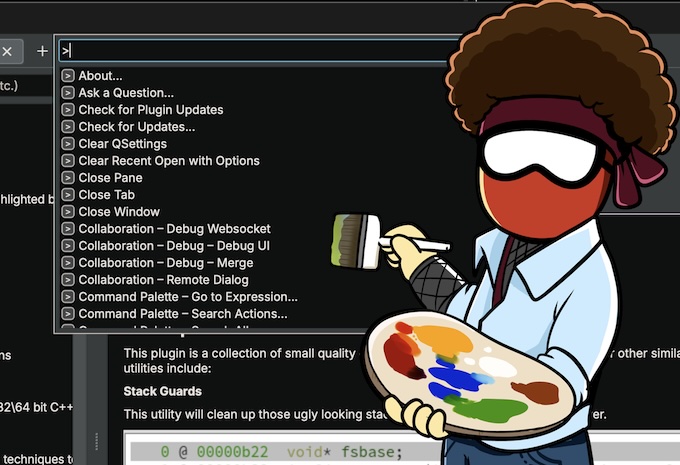
The Command Palette is one of the primary interfaces for interacting with Binary Ninja, and has been for almost as long as Binary Ninja has existed. Now, in the upcoming Jotunheim release, the Command Palette is getting more powerful! Beyond just searching menu items, you will be able to search Functions, Types, Strings, and more!
Search Analysis Objects
If you have an analysis session open, you can now search for various analysis objects directly in the Command Palette. You can start your search with different prefixes if you want to search for different types of objects:
| Prefix | Search Type |
|---|---|
| None | Everything |
@ |
Functions and Symbols |
" |
Strings |
> |
Actions (previous default) |
t: |
Open Tabs |
/ |
Projects |
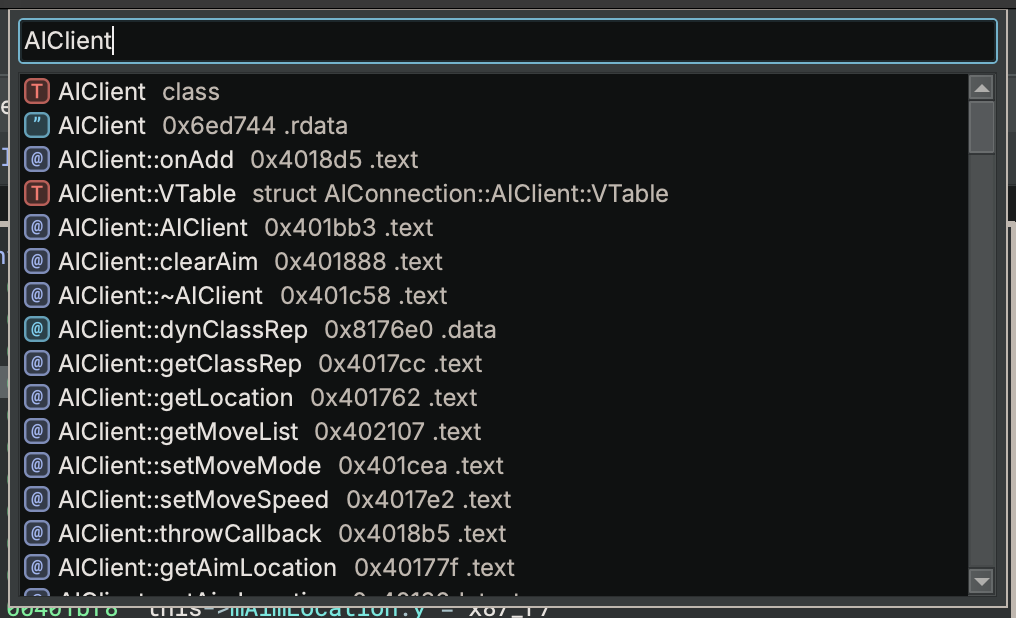
Search Everything
With no prefix, the Command Palette will search for any sort of action or object that matches:
Search Functions and Symbols
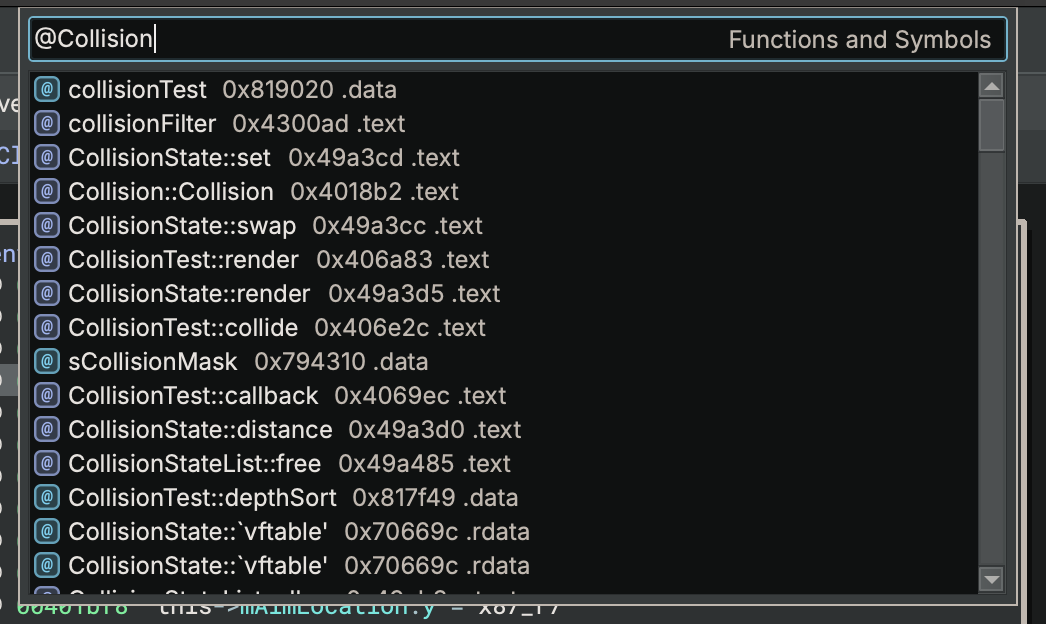
Starting your search with @ will let you search Functions and Symbols. Selecting one and pressing enter will navigate you to it:
Search Strings
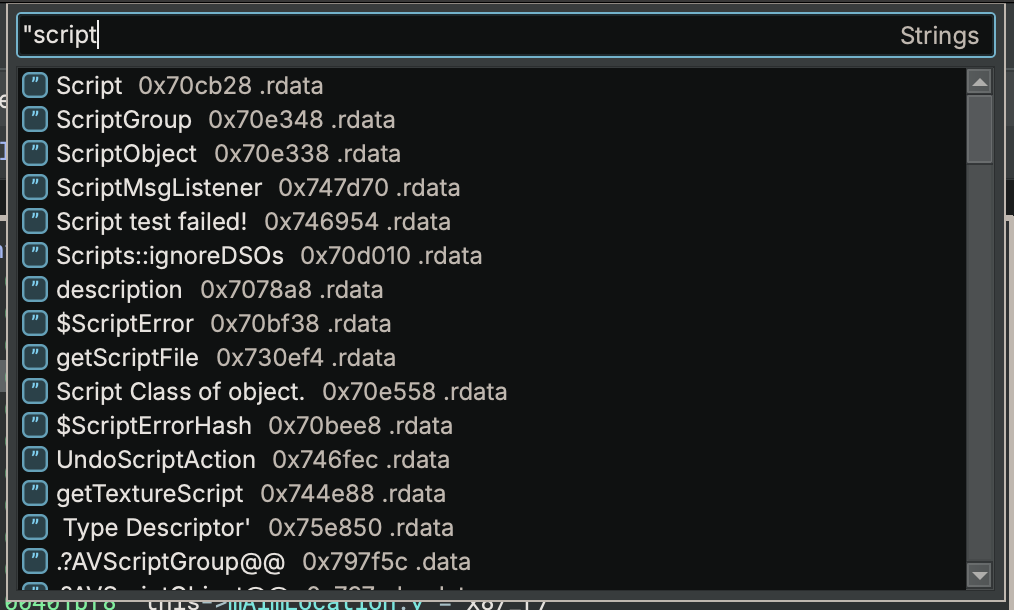
Starting your search with " will let you search for strings. Selecting one and pressing enter will navigate you to it, or for the case of strcpy-outlined strings, where it gets constructed:
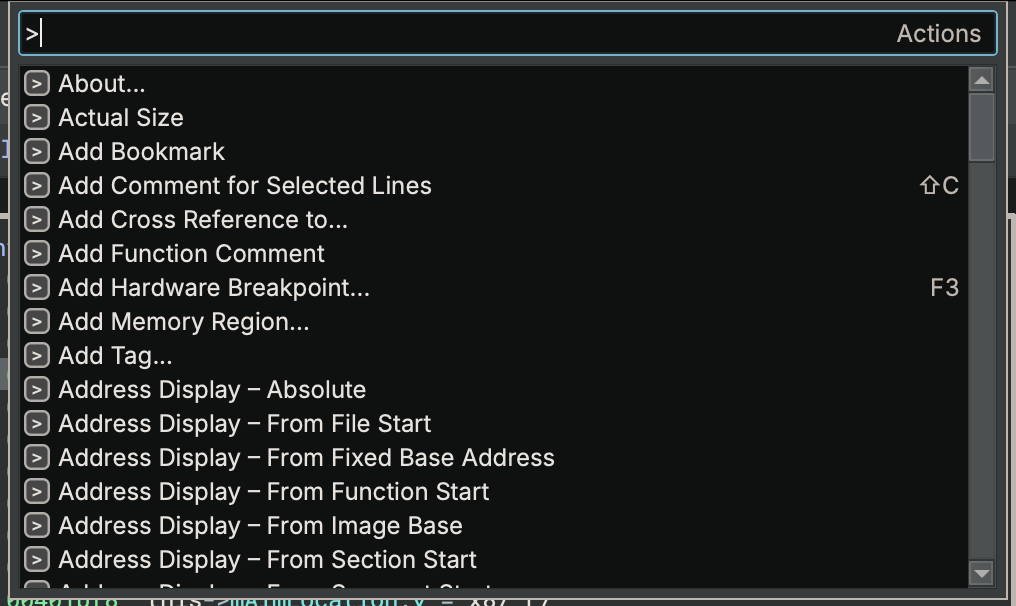
Search Actions
Starting your search with > will let you search actions, similar to how the Command Palette used to work:
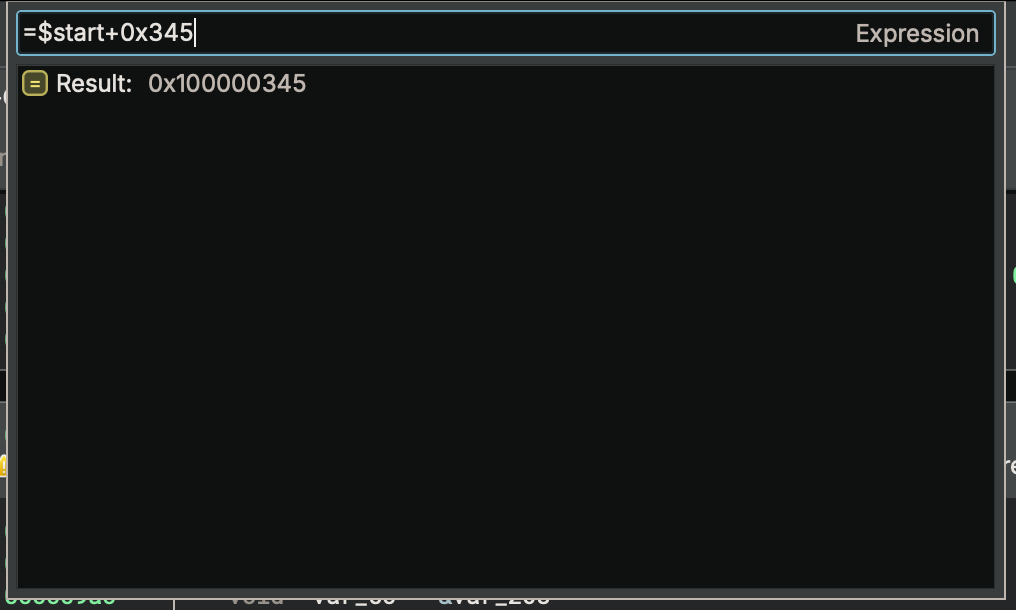
Go to Expression
Starting your search with = will let you enter an expression, which will be calculated and shown in the results. If the value is an address within your open analysis session, pressing enter will navigate to that address:
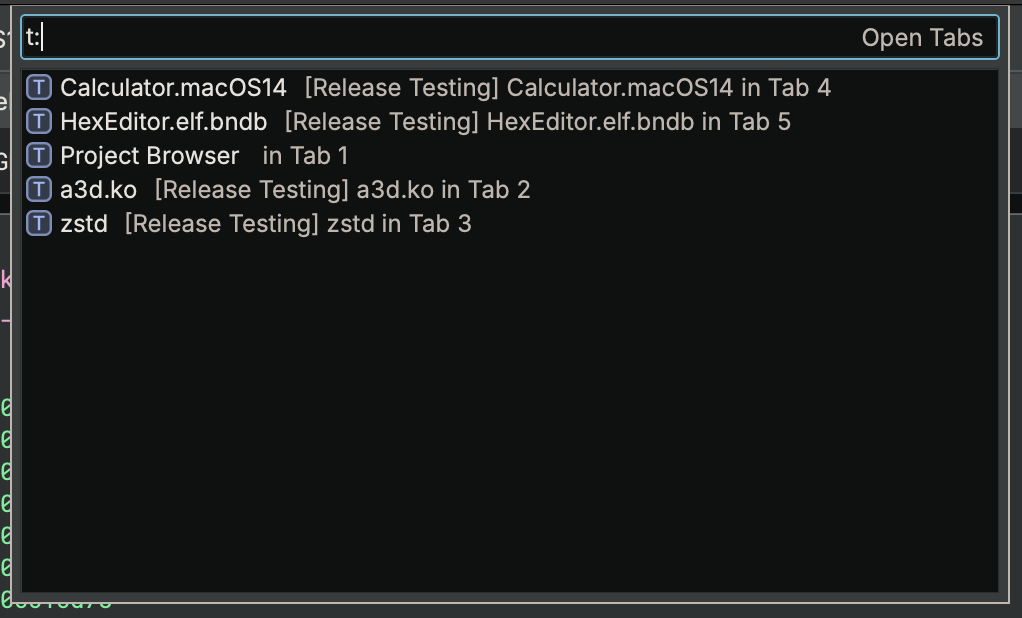
Search Open Tabs
Starting your search with t: will let you search your open tabs, showing file names and paths if applicable:
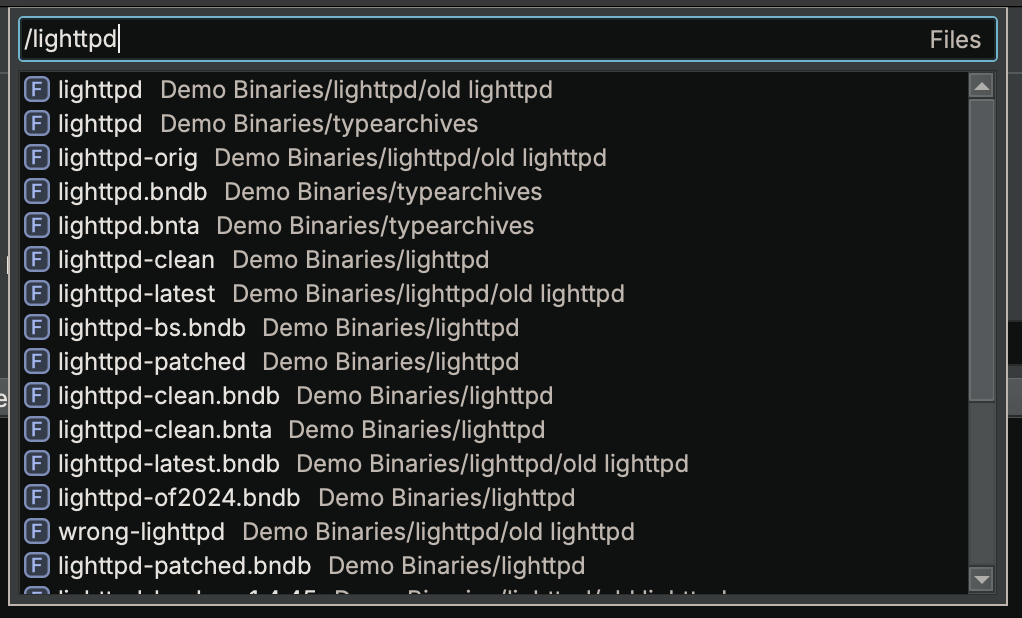
Search Project Files
On Commercial and above editions, starting your search with / will let you search the files in your open projects:
Conclusion
We hope that the enhanced Command Palette helps optimize your reverse engineering workflow even further, letting you navigate across the product faster, and entirely from the keyboard. We look forward to your feedback and suggestions, as we strive to make Binary Ninja the best tool for reverse engineering!
如有侵权请联系:admin#unsafe.sh